A decoder error is usually a billing message, not a broken box. This guide covers how to pay DSTV decoder online and then force the decoder to pick up the new authorisation.
How to pay DSTV decoder online: the steps
- 1
Note your smartcard and account number
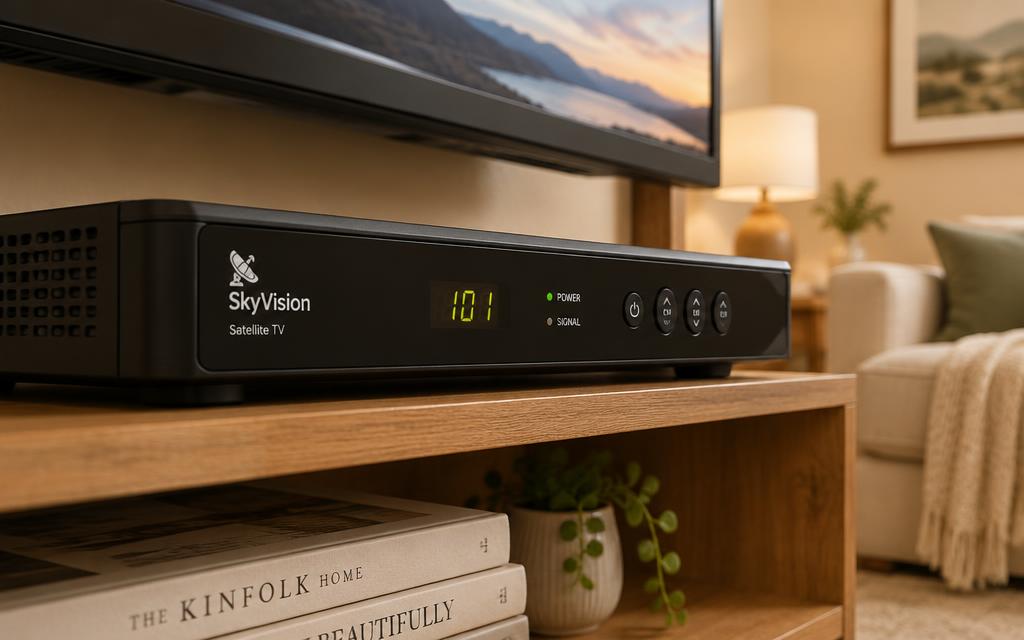
Press the decoder's i or Help button, or check the sticker on the box, to find the smartcard number. Your invoice carries the DSTV account number you will pay with.
- 2
Make the payment online
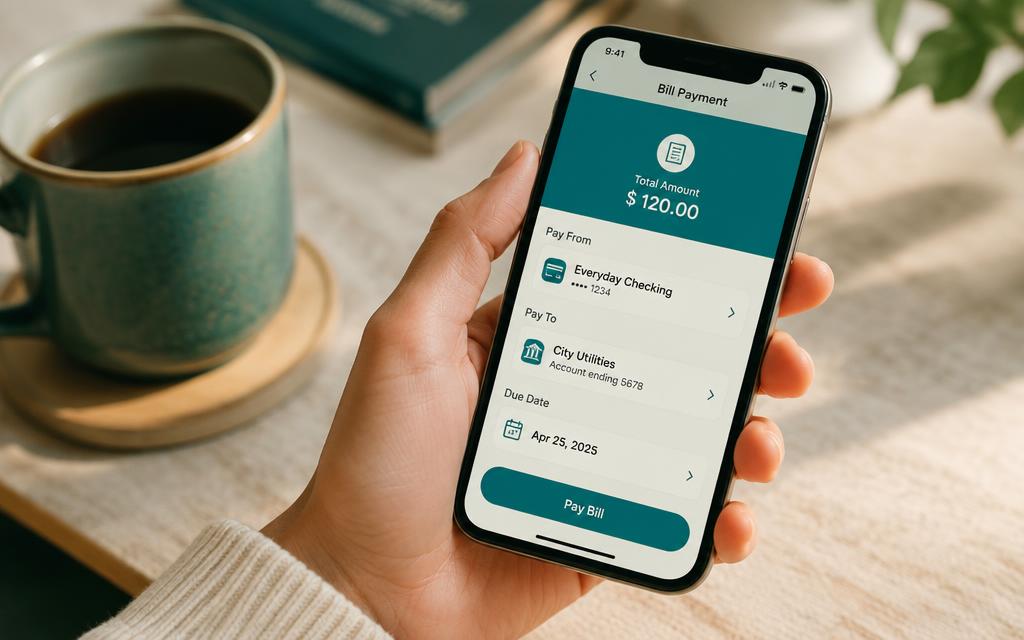
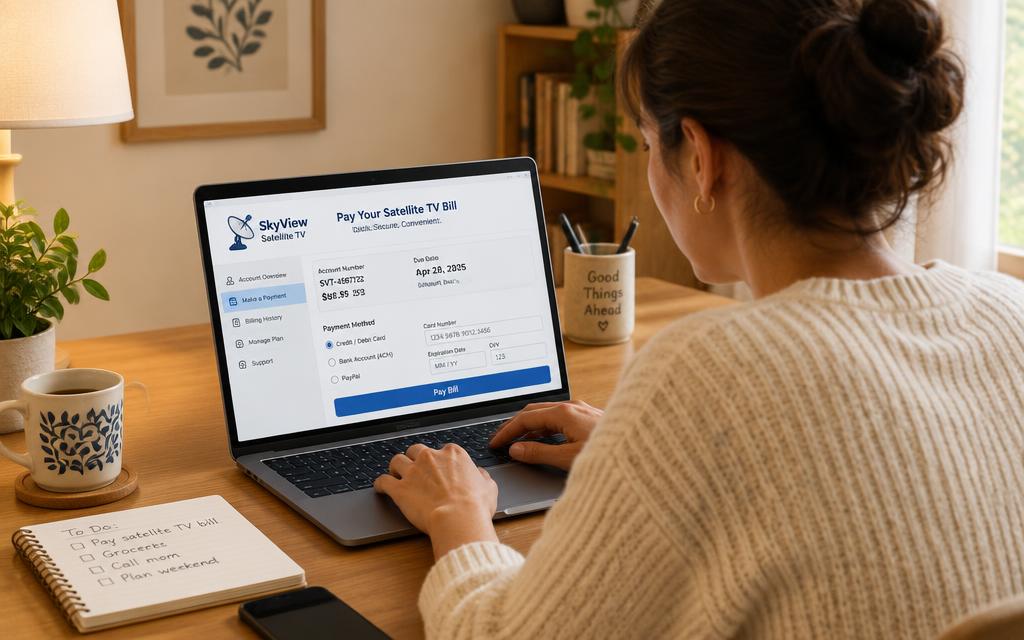
Pay through your banking app's MultiChoice DStv biller or by card on MyDStv. This is the fastest way to pay your DSTV decoder online.
- 3
Reboot or rescan the decoder
Leave the decoder on and tuned to a DStv channel for a few minutes. If it is still blocked, switch it off at the wall for 30 seconds, then power it back on so it re-reads the authorisation.
- 4
Send a clear-error request if needed
Still stuck? Use DStv self-service on WhatsApp and choose Clear error with your smartcard number. It pushes a fresh signal to the decoder.
Frequently asked questions
How long after paying DSTV online does the decoder reactivate?+
Usually a few minutes. Allow up to 24 hours during month-end peaks, and keep the decoder switched on so it can receive the signal.
Do I pay with my smartcard number or account number?+
Use your DSTV account number as the payment reference. The smartcard number is for clearing errors, not for referencing payments.
Why is my decoder still showing an error after I paid?+
Either the payment is unallocated because of a wrong reference, or the decoder has not been rebooted. Check the reference, then power-cycle the box.
Can I pay for two decoders online at once?+
Yes. Extra decoders on the same account are billed under one DSTV account number, so a single online payment covers them all.
Searches this guide answers
- how to pay dstv decoder online
- how to pay dstv online with capitec
- how to pay your dstv online